Connect Tradovate, Rithmic, and WealthCharts Accounts
TradingPlace connects to your prop firm accounts through Tradovate, Rithmic, or WealthCharts. This guide walks you through the connection process.
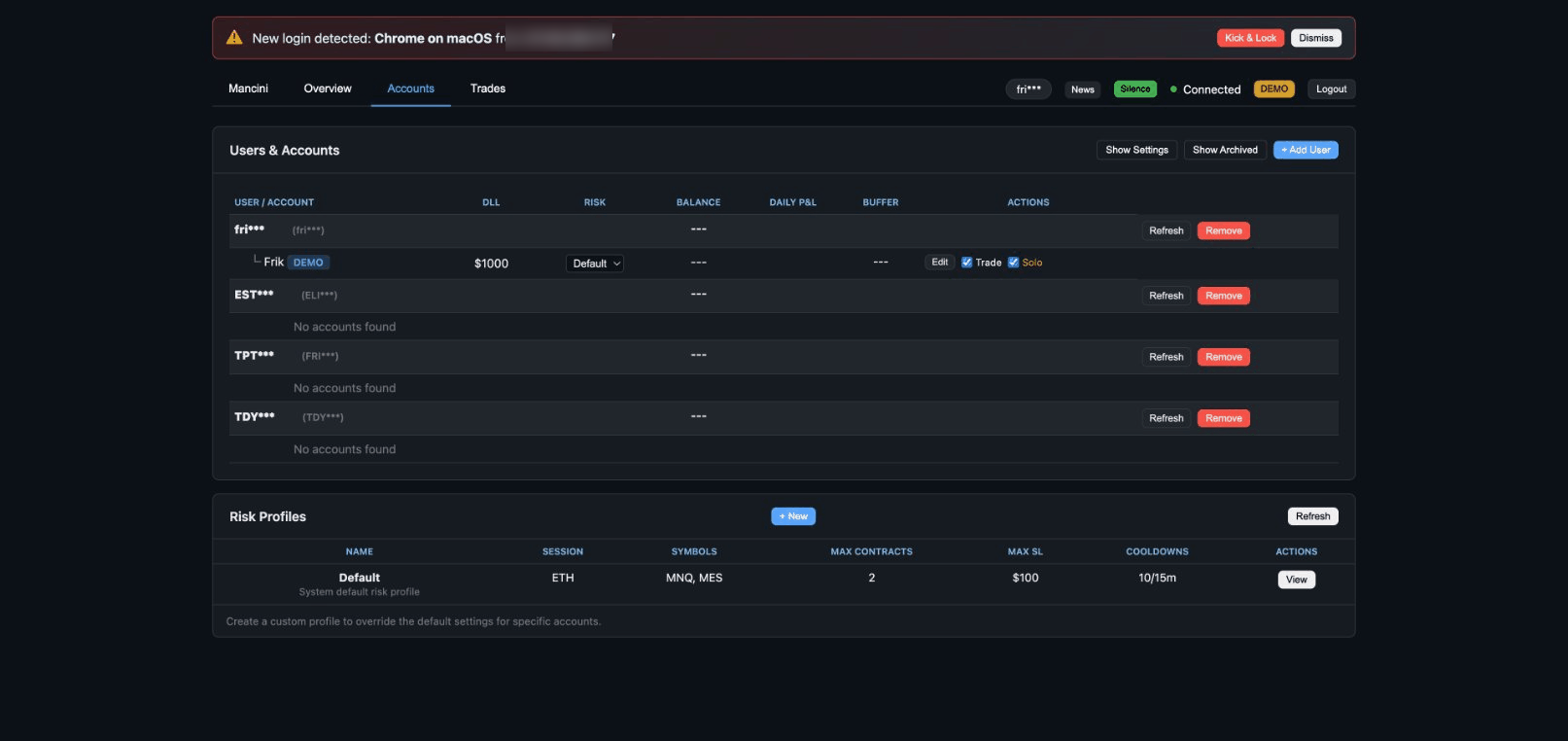
1Gather Your Credentials
Before connecting, you'll need your broker login credentials:
- Username - Your Tradovate, Rithmic, or WealthCharts account username
- Password - Your account password
These are the same credentials you use to log into your broker directly. TradingPlace does not store your password - it's used only to establish the connection.
2Add a Connection
In your TradingPlace dashboard:
- Click the "Add Connection" button
- Enter your broker username and password
- Select "Live" or "Demo" environment (most prop firms use Live)
- Click "Connect"
TradingPlace will authenticate with your broker and retrieve your available accounts.
3Select Accounts
After connecting, you'll see a list of all accounts under your broker login. Check the boxes next to the accounts you want to manage with TradingPlace.
You can connect multiple broker logins if you have accounts with different prop firms.
Account Types and Color Coding
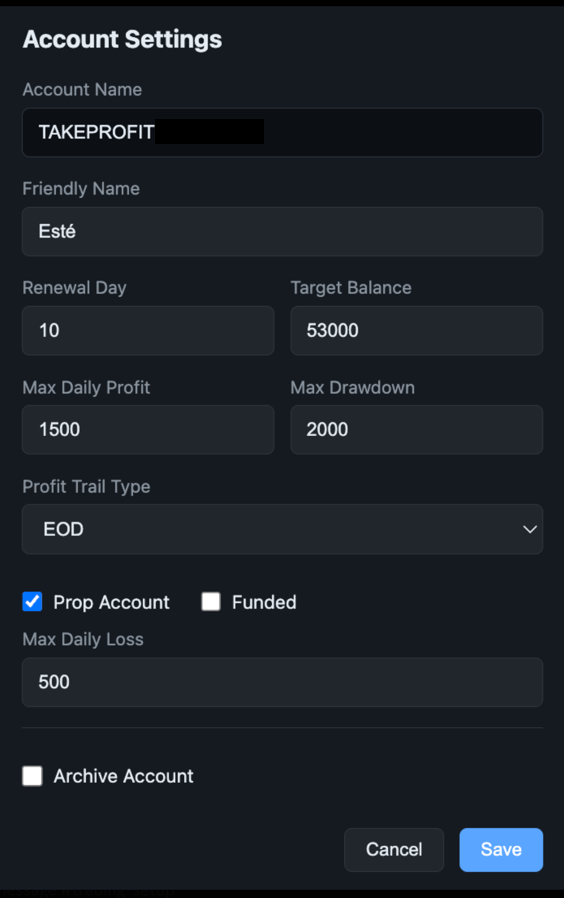
TradingPlace uses color coding to help you quickly identify account types:
- Red = Funded - Live funded accounts with real capital
- Blue = Evaluation - Evaluation or challenge accounts
You can set an account's type in Account Settings. This helps prevent accidentally trading the wrong account type.
Troubleshooting
Connection Failed
- Double-check your username and password
- Ensure you selected the correct environment (Live vs Demo)
- Try logging into your broker directly to verify credentials work
- Check if your broker requires a password reset
Accounts Not Showing
- Make sure the account is active with your prop firm
- Wait a few minutes and refresh - new accounts may take time to appear
- Try disconnecting and reconnecting the broker login
Connection Drops
TradingPlace automatically reconnects if the connection drops. If you see persistent connection issues:
- Check your internet connection
- Verify your broker is not experiencing outages
- Try removing and re-adding the connection
Security Notes
- TradingPlace uses secure authentication with Tradovate, Rithmic, and WealthCharts
- Your password is never stored - only used during initial connection
- You can disconnect accounts at any time from your dashboard
- TradingPlace only has permission to place orders - it cannot withdraw funds